SEBA in a Box for development
This tutorial will guide you through the development workflow for a SEBA component using the environment provided by SEBA in a Box.
The tutorial will use the rcord service as an example, but the same workflow can be used
for each docker-based component in SEBA.
If you are working on ONOS applications, you want to take a look at this tutorial.
NOTE that the same workflow can be adapted for:
- different emulated environment (eg:
MCORD in a Box)- physical setups
Requirements
In order to follow this tutorial you need to:
- have a remote machine to run SEBA-in-a-Box
- have Docker installed on your development machine (Install docker on Mac, Ubuntu or Windows)
- have the CORD code (we suggest to download the code using this guide)
Preparing SEBA in a Box
We suggest to refer to this guide to deploy SEBA in a Box, but for simplicity the commands are replicated here:
mkdir -p ~/cord
cd ~/cord
git clone https://gerrit.opencord.org/automation-tools
cd automation-tools/seba-in-a-box
make latest
NOTE that for development we suggest do use the
latestavailable version of all the components, but in certain cases (eg: bugfixes) you may want to usemake stable
Deploy a docker registry
In order to move Docker images from your laptop to the SEBA in a Box environment you need
a Docker registry. You can install one using helm:
helm install stable/docker-registry --set service.nodePort=30500,service.type=NodePort -n docker-registry
Configure docker to push to an insecure registry
The registry deployed via helm is by default an insecure registry (it uses http instead of https)
thus docker requires that you explicitly authorize that registry.
You can find more informations about insecure registries on the docker documentation.
MacOS
To open the Docker preferences click on the icon in the status bar (top right of the screen)
and select preferences.
Navigate to the Daemon tab and under Insecure registries add the ip and port of the one
running on your SiaB machine:
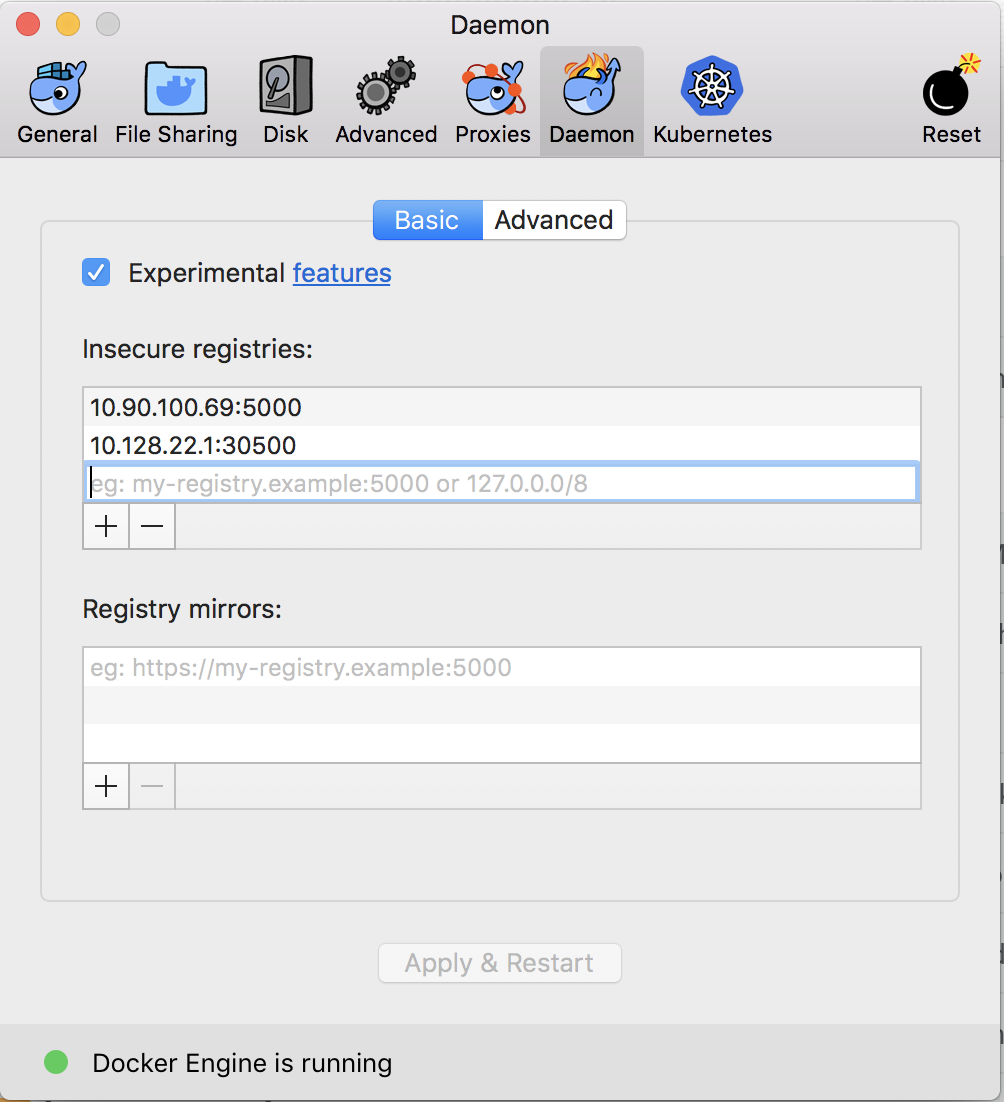
NOTE that the docker-registry endpoint should be
myregistrydomain.com:30500wheremyregistrydomain.comis the publicipof yourSiaBmachine.
Click on Apply and Restart to apply your changes.
Linux
This needs to be done on the SiaB machine (and on you machine if it's a Linux based machine)
Edit the /etc/docker/daemon.json file and add:
{
  "insecure-registries" : ["myregistrydomain.com:30500"]
}
where myregistrydomain.com is the public ip of your SiaB machine.
Then restart the docker daemon with: sudo service docker restart
Make changes and publish the image
Once you make the appropriate changes to the code, you can buid it with:
cd ~/cord/orchestration/xos-services/rcord
DOCKER_REGISTRY=myregistrydomain.com:30500/ DOCKER_REPOSITORY=xosproject/ DOCKER_TAG=candidate make docker-build
...
Successfully built 14a4ec8f2906
Successfully tagged myregistrydomain.com/xosproject/rcord-synchronizer:candidate
where myregistrydomain.com is the public ip of your SiaB machine.
Note: In some cases the command to build the docker image may vary. Please check the Makefile within the repo for more informations.
To push the newly built image to your docker registry use this command:
cd ~/cord/orchestration/xos-services/rcord
DOCKER_REGISTRY=myregistrydomain.com:30500/ DOCKER_REPOSITORY=xosproject/ DOCKER_TAG=candidate make docker-push
docker push myregistrydomain.com:30500/xosproject/rcord-synchronizer:candidate
The push refers to repository [myregistrydomain.com:30500/xosproject/rcord-synchronizer]
43b4d40e8ced: Layer already exists
70019539cd35: Layer already exists
56585fbf0fe2: Layer already exists
4929606216d8: Layer already exists
343eab13e1e3: Layer already exists
ea7c8d4e60dc: Layer already exists
7d63eb9a32c4: Layer already exists
bcf2f368fe23: Layer already exists
candidate: digest: sha256:f5ecac2ba76c2a81a6f8b82b09e07c53f9ca2f3d272c8861ed7f5ed1ac290ac8 size: 1993
where myregistrydomain.com is the public ip of your SiaB machine.
Customizing the installation
When SiaB is installed with the make latest command, a values.yaml file is applied
to all the helm install commands.
To know more about
valuesfiles, please check the official helm documentation
To customize the installation, download the default seba-ponsim-latest.yaml so that you can customize it:
curl https://raw.githubusercontent.com/opencord/helm-charts/master/configs/seba-ponsim-latest.yaml -o ~/custom.yaml
Update the helm chart
To deploy the new container you need to update the helm-chart, but first you need to customize the value file.
Open the file you downloaded in ~/custom.yaml and change the rcord section so that it looks like:
rcord:
  image:
    repository: "myregistrydomain.com:30500/xosproject/rcord-synchronizer"
    tag: 'candidate'
The rcord service is installed by the seba-services helm chart, so you need to upgrade it to
the new version:
cd ~/cord/helm-charts
helm upgrade --install seba-services xos-profiles/seba-services -f ~/custom.yaml
NOTE it's important that you upgrade the chart defining the component you are developing. For more informations about the helm charts visit the Helm reference section in the guide.
Reinstall from scratch
In some cases you want to restart from a clean environment using your images.
If you do that it is important not to run the make reset-kubeadm command as that will
completely teardown kubernetes, deleting the docker registry.
To remove all the installed containers you can instead use the make teardown-charts commands.
Once all the containers have been removed, you can reinstall everything using your value file with:
SEBAVALUES=~/custom.yaml make
NOTE that the
latesttarget is not needed as we are specifying a custom value file through theSEBAVALUESvariable.
Troubleshooting
If you are facing issues with this development workflow, please report your problem on the SEBA-dev
or CORD-dev mailing lists, or contact @teone on slack.
FAQs
I want to update an image that comes from a different chart, how do I know the value file structure?
If you're not familiar with how value files work we suggest to read the official documentation
but to make it short you can look for the values.yaml file in the helm chart you are working with.
If the helm chart is installed as a requirement of another chart also look for the requirement name in the parent chart. For example the
rcordchart is installed as part ofseba-servicesand that's why we nest the customization underrcord.
Why do I need a remote docker-registry?
We have a talk about this topic during ONF Connect 2018, you can find the recording here and the slides here.
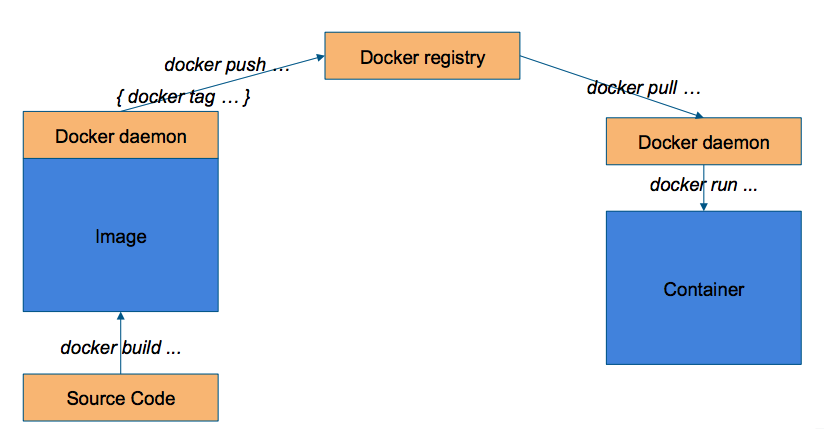
To explain that in few words, you need a way to move the docker image from the "build" machine to the "host" machine, as described in the picture below.
I don't want to use a private docker-registry, can I use Docker Hub?
If you don't want to deploy a docker-registry on the POD, you can use any docker registry.
The docker-build/docker-push commands are flexible enough to accomodate that,
for example you can build and push the container with these commands:
DOCKER_REPOSITORY=matteoscandolo/ DOCKER_TAG=candidate make docker-build
DOCKER_REPOSITORY=matteoscandolo/ DOCKER_TAG=candidate make docker-push
And customize your value file to fetch that image:
rcord:
  image:
    repository: "matteoscandolo/rcord-synchronizer"
    tag: 'candidate'
Can I build images on the SiaB machine and use those?
Yes, you can build the docker containers directly on the SiaB host machine, just be aware that this workflow won't transfer to a multi-node cluster.
If you build the rcord-synchronizer docker image on the SiaB machine with:
DOCKER_REPOSITORY=xosproject/ DOCKER_TAG=candidate make docker-build
you can change the custom.yaml value file in this way to use it:
rcord:
  image:
    tag: 'candidate'
    pullPolicy: 'IfNotPresent'
For more information about this workflow we suggest to take a look at the talk mentioned in the Why do I need a remote docker-registry? section.
Can use the same workflow to test VOLTHA images?
Yes, the workflow to test VOLTHA images is absolutely the same, but some of the commands are different.
On your local machine you can build VOLTHA images with:
cd ~/cord/incubator/voltha
REPOSITORY=voltha/ TAG=candidate VOLTHA_BUILD=docker make build
Then you need to tag and push the images you want to upload with:
docker tag voltha/voltha-voltha:candidate myregistrydomain.com:30500/voltha/voltha-voltha:candidate
docker push myregistrydomain.com:30500/voltha/voltha-voltha:candidate
where myregistrydomain.com is the public ip of your SiaB machine.
And update you custom.yaml value file on the SiaB machine with:
images:
  vcore:
    repository: "myregistrydomain.com:30500/voltha/voltha-voltha"
    tag: 'candidate'